

ScanTastik
Call the Document Imaging Experts
1-800-977-4935

Document Scanners | Large Format Scanners Book Scanners | Large Format Printers

Customer Reviews
ScanTastik 30 year anniversary
My Account | Register | Cart
Quote Request | Gov't Sales

ScanWizard

Scanning Software for BookTEK scanners

ScanWizard Logo

ScanWizard software is FREE and INCLUDED inside the book scanner on it's internal PC. The ScanWizard software controls the scanner directly through the external Touch Screen or through a browser on a PC on the same network as the scanner.

ScanWizard is operating system independent and requires no installation of any kind on the user's client PC since it is built right in to the book scanner. Once your network administrator has assigned the scanner an IP address and installed it on your network, any user can access the book scanner and operate it remotely using ScanWizard.


BookTEK ScanWizard Software
Features

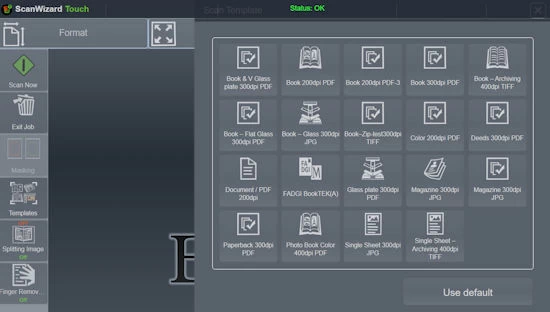
The software comes with 28 predefined Job Templates. For example, 8.5x11" book, scan @ 300 dpi, output to multipage PDF. Or tweak the settings and save as your own Job Template. It's that easy.

  • Output to many file formats
  • Supports multiple users, multiple jobs and tasks.
  • Runs on any browser with Java script enabled.
  • Identical look and feel on Windows, Mac, Linux platforms
  • No need to install drivers, cards or anything else.
  • Supports all BookTEK scanners
BookTEK ScanWizard Software
Imaging Functions
  • Automatic Focus and Exposure Controls
  • Automatic Cropping with Page Masking
  • Automatic Border Recognition and Removal
  • Automatic Despeckle and Deskew Functions
  • Automatic Finger Removal
  • Automatic Book Channel Compensation
  • Automatic Document Rotation or Mirror
  • Automatic Page Splitting
  • Book Fan Removal (no side page edges showing)
  • Black Border Removal
  • Punch Hole Removal
  • Virtual Rescan with Real Time Image Editing
  • Scan up to 400 DPI upgradeable to 600 DPI
  • Anti-reflection Mode for glossy documents
  • Scan modes: Fast, High Quality and Anti-reflective
  • Real Time Image Enhancement: Brightness, Contrast, Sharpness
  • Color Removal
  • Color (8-bit/24-bit), Grayscale, Bitonal, Halftone, Inverted
  • ICC Profiles are supported and can be embedded in file
  • Color Space: Native, sRGB, Adobe RGB
  • Multiple file format outputs
  • OCR Option for single and multipage scanned documents.
BookTEK ScanWizard Software
Output Functions
Output File Formats:
  • PDF (single/multipage)
  • PDF/A (Archive)
  • Tiff (single/multipage)
  • Jpeg
  • BMP
  • Zip
  • AutoCAD DWF
  • Postscript / Encapsulated Postscript
Output Features:
  • Scan to Cloud: Google Docs, OneDrive, Drop Box.
  • Scan to external USB
  • Scan to SMB Shared drives
  • Scan to any FTP or FTPS server
  • Scan to Email
  • Scan to Remote Printer
Create Custom Scan Templates

ScanWizard comes with 29 preset scanning templates. You can choose one, copy it, and save your changes as a new scanning template to match your needs.

Scan Wizard Templates
Five Separate Function Areas
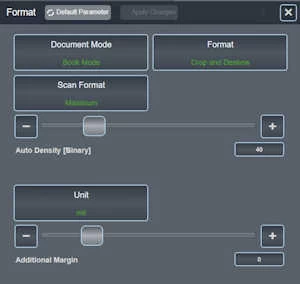
  • Format: Scan modes, sizes (book, flat, V-Glass, etc.)
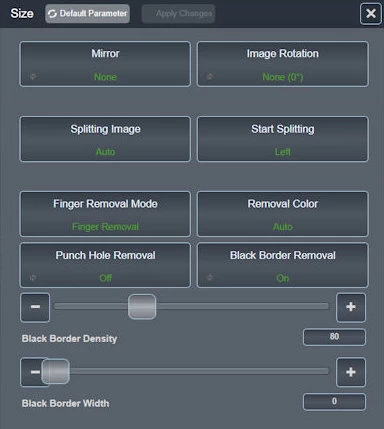
  • Size: Mirror, Rotation, Splitting, Finger removal, Border or Punch hole removal.
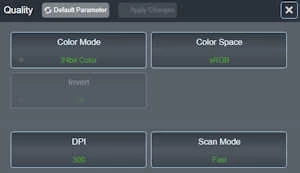
  • Quality: Color Modes (24 bit, binary, etc), Color space (sRGB, Srgb2, etc), DPI, Scan Modes
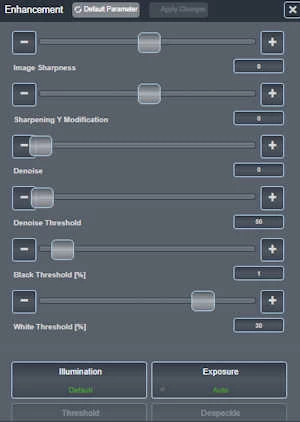
  • Enhancement: Manual image adjusts for contrast, brightness, sharpness, etc, or Auto image
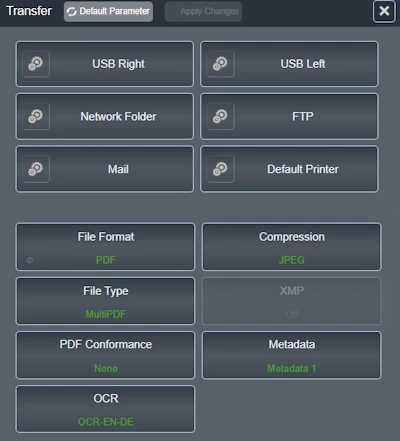
  • Transfer: File format, naming, metadata, Export: USB, SMB, FTP, Mail, Printer
  • Supports all WideTEK and Bookeye scanners
Choose your Format settings:

The Format section allows you to drill down and make formatting changes:

Scan Wizard Format Function
Choose your Size settings:

The Size section allows you to drill down and make scanning image changes:

Scan Wizard Size Function
Choose your Image Quality settings:

The Quality section allows you to drill down and make scanning image changes:

Scan Wizard Size Function
Choose your Image Enhancement settings:

The Enhancement section allows you to drill down and manually change images.

Scan Wizard Size Function
Choose your Transfer settings:

The Transfer section allows you to drill down and make file name, file format, and export location changes:

Scan Wizard transfer Function

Back to Top